
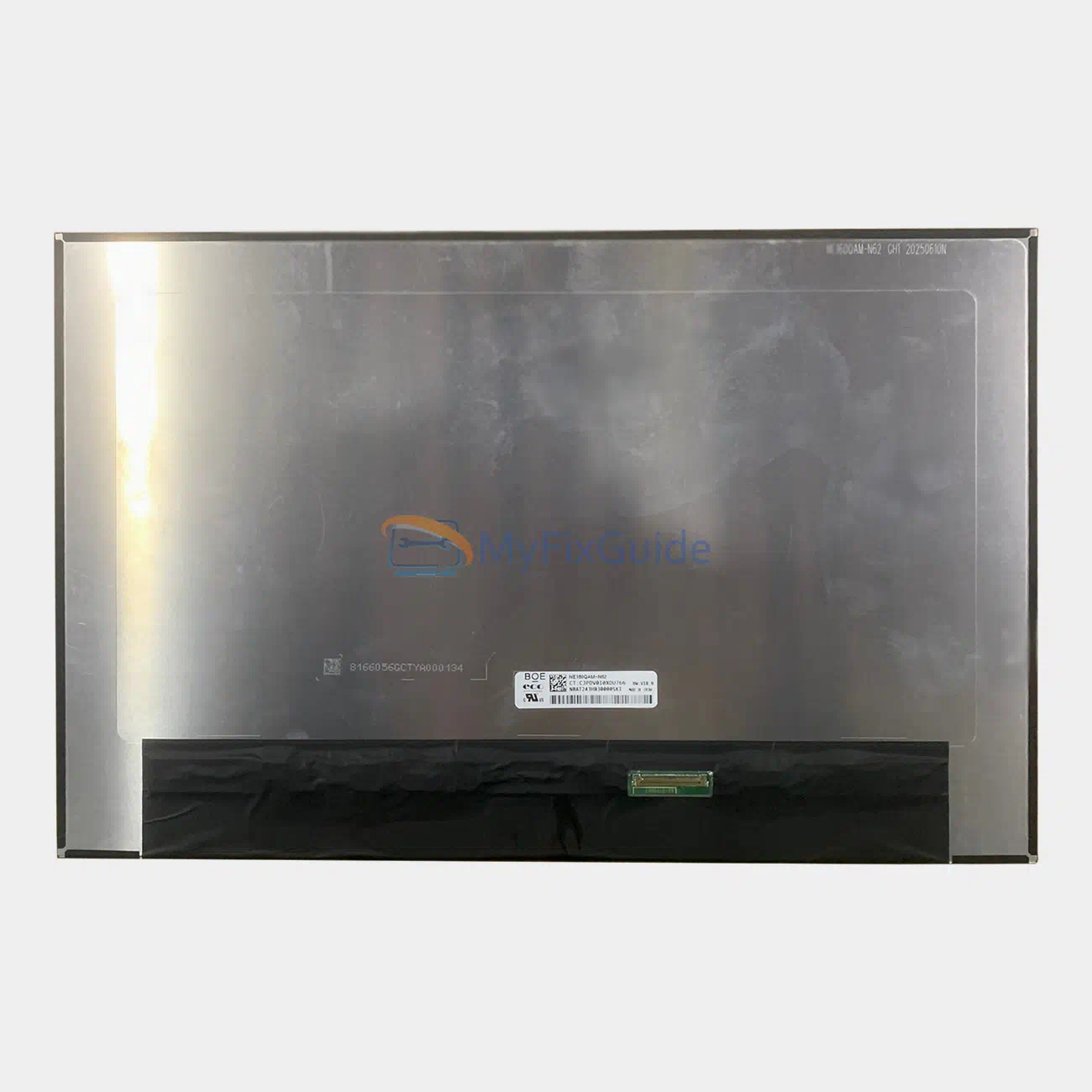
New screen for Lenovo 5D11C95957 and 5D11C95956. The screen has a resolution of WQUXGA (3840 x 2400), 100% DCI-P3 color gamut coverage, 800-nit brightness, and a 60 Hz refresh rate.
Features:
1. It is an original screen. It has the same specifications and model number as your original screen.
2. Each screen is rigorously tested to ensure that it works fine and has no dead pixels
3. Each screen will come with two double-sided tapes.
Specifications:
Size: 16-inch IPS Screen
Resolution: WQUXGA (3840 x 2400)
Touch: Non-Touch
Connector: 40 pins
Refresh Rate: 60Hz
Backlight Type: LED
Brightness: 800 nits
Contrast Ratio: 1500:1
Aspect Ratio: 16:10
Color Gamut: 100% DCI-P3
Surface Type: Matte, Anti-Glare
Other features: DisplayHDR 400, Dolby Vision, Eyesafe Certified 2.0, TÜV Low Blue Light, DC dimming
Condition: New, Original
Dead Pixel Policy: No Dead Pixel
Warranty: One Year
Part Number:
5D11C95957
Compatible Part Numbers:
5D11C95956
Compatible Laptops:
ThinkPad P16 Gen 3 (Type 21RQ, 21RR)
ThinkPad T16g Gen 3 (Type 21V5, 21V6)
1. Please make sure the part number, specifications, and image match the original screen on your laptop.
2. To replace your screen, you need to disable the battery in the BIOS. This is to protect your laptop from being damaged by static electricity.
3. Insert the old card between the screen bezel and the display back cover. Pry up the screen bezel and start separating it from the back cover.
4. Slowly pull out the easy-stretch adhesive under the screen, and you can easily remove the screen.
5. Place the LCD screen on the keyboard, disconnect the display cable from the screen to remove the old screen, and then you can install the new screen on your laptop.
6. Glue the two easy-to-pull adhesives to the LCD back cover, insert the screen cable into the connector of the screen and fix it, and then fix the screen on the LCD back cover.
7. You can first connect the LCD cable to your screen, then start the laptop to check that your LCD screen is working properly, then fix the screen on the back cover, and install the LCD bezel on your laptop.
Reviews
There are no reviews yet