
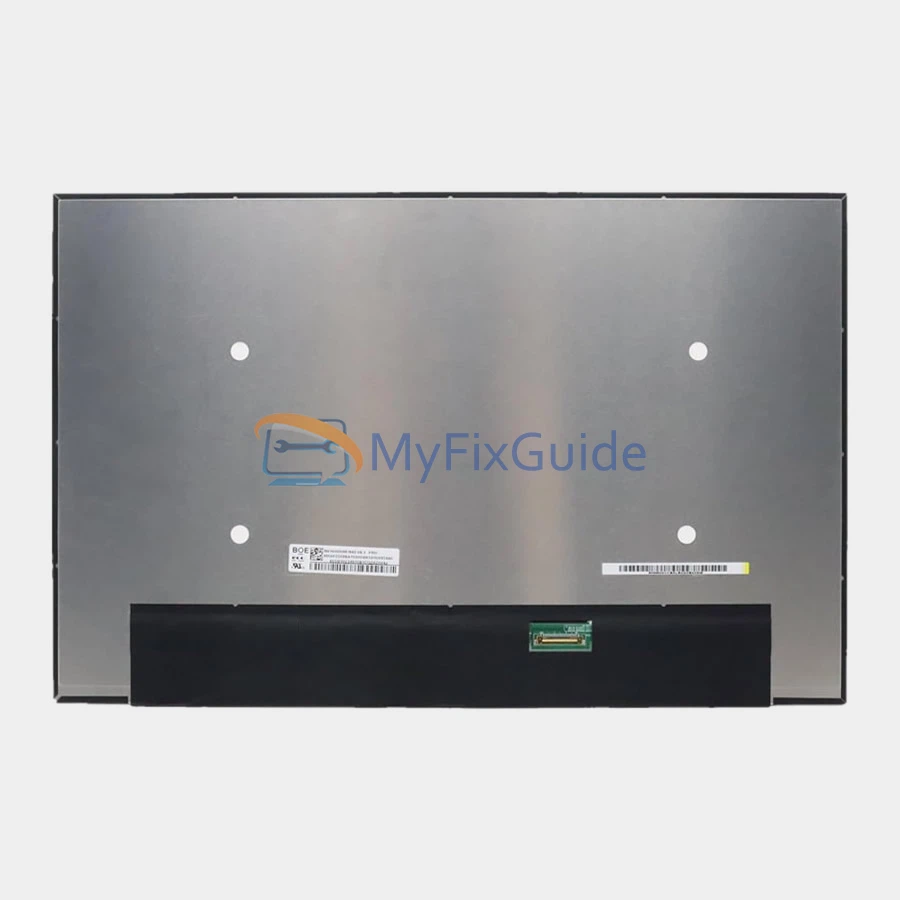
New screen for Lenovo ThinkPad T14 Gen 6 laptop. This laptop has multiple screen specifications. Please check your screen specifications before placing your order.
If you don’t know your screen’s specifications, please contact us and submit your laptop’s serial number and type number, which you can find on the black sticker on the bottom cover.
Features:
1. This screen has the same specifications as your original screen.
2. Each screen is rigorously tested to ensure that it has no dead pixels.
3. Each screen will come with two double-sided tapes for installing the screen.
Specifications:
1920×1200 45% NTSC:
14″ WUXGA (1920×1200), IPS, 400 nits, Anti-glare, 45% NTSC
1920×1200 45% NTSC Touch:
14″ WUXGA (1920×1200), IPS, 400 nits, Anti-glare, 45% NTSC, On-cell Touch
1920×1200 100% sRGB:
14″ WUXGA (1920×1200), IPS, 500 nits, Anti-glare, 100% sRGB
1920×1200 100% sRGB Touch:
14″ WUXGA (1920×1200), IPS, 500 nits, Anti-glare, 100% sRGB, On-cell Touch
Condition: New, Original, No Dead Pixels
Warranty: One (1) Year
Compatible laptop:
ThinkPad T14 Gen 6 (Type 21QC, 21QD, 21QG, 21QH, 21QJ, 21QK)
1920×1200 45% NTSC fits the following type numbers:
21QC001XUS
21QC0021US
21QC00BCCA
21QC00BCUS
21QG0006CA
21QG0006US
21QG0045US
21QG0046CA
21QG0046US
21QG004XCA
21QG004XUS
21QJ00CRUS
21QJ00CSCA
21QJ00CSUS
1920×1200 45% NTSC Touch fits the following type numbers:
21QC001YUS
21QC0020CA
21QC0020US
21QC0022CA
21QC0022US
21QC006PCA
21QC006PUS
21QC006QCA
21QC006QUS
21QC006RUS
21QC00AUCA
21QC00AUUS
21QG0007CA
21QG0007US
21QG0008CA
21QG0008US
21QG002ACA
21QG002AUS
21QG004VCA
21QG004VUS
21QG004WCA
21QG004WUS
21QJ00CTCA
21QJ00CTUS
Replacement Tips:
1. Please make sure the part number, specifications, and image match the original screen on your laptop.
2. To replace your screen, you have to remove the battery or disconnect the battery cable from the motherboard. This is to protect your laptop from being damaged by static electricity.
3. Insert the old card between the screen bezel and the display back cover. Pry up the screen bezel and start separating it from the back cover.
4. Slowly pull out the easy-stretch adhesive under the screen, and you can easily remove the screen.
5. Place the LCD screen on the keyboard, disconnect the display cable from the screen to remove the old screen, and then you can install the new screen on your laptop.
6. Glue the two easy-to-pull adhesives to the LCD back cover, insert the screen cable into the connector of the screen and fix it, and then fix the screen on the LCD back cover.
7. You can first connect the LCD cable to your screen, then start the laptop to check that your LCD screen is working properly, then fix the screen on the back cover, and install the LCD bezel on your laptop.
Reviews
There are no reviews yet