
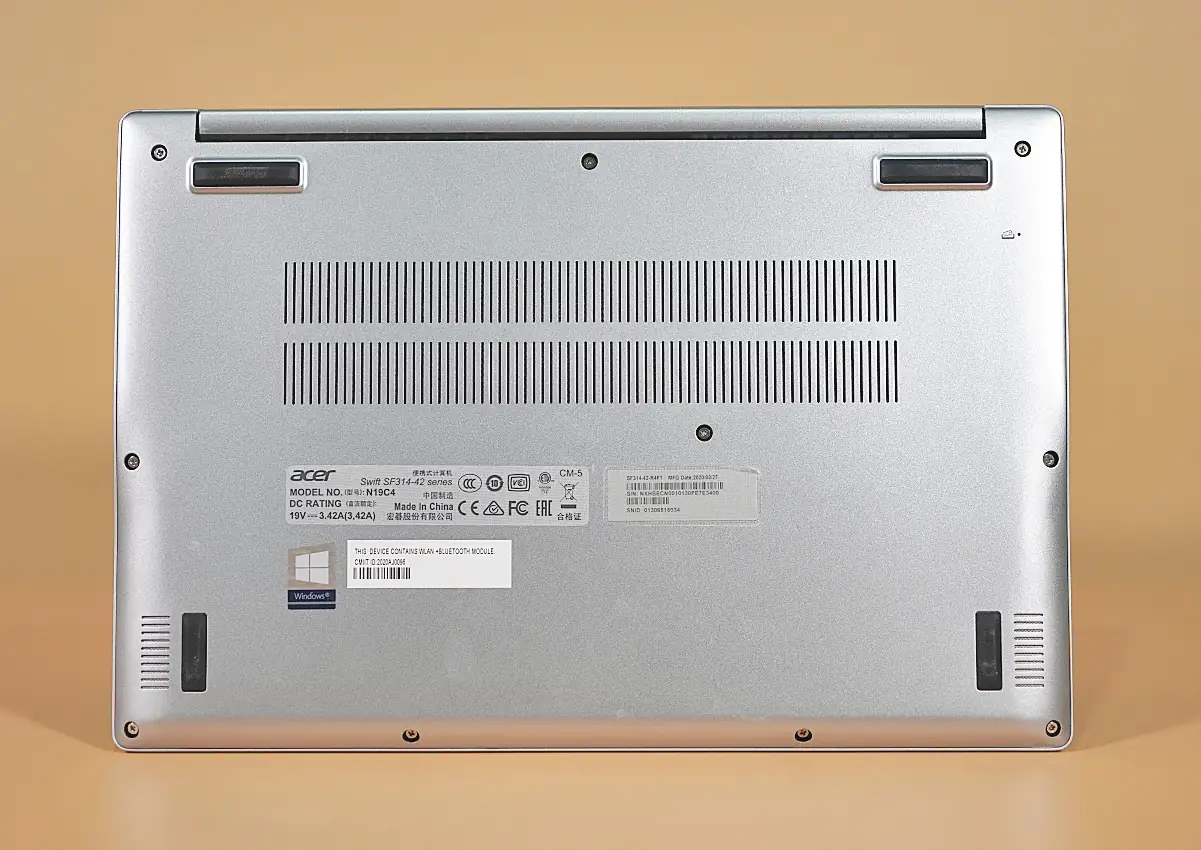
First, use a screwdriver to remove all the screws securing the bottom cover, then remove the cover.
It is worth noting that many Acer laptops have a power-off switch on the bottom cover. When the Windows system crashes, and you need to force a shutdown, insert a pin into the small hole in the upper-right corner of the bottom cover.
After removing the bottom cover, let’s take a look at the internal structure of the Acer Swift 3 SF314-42. It features a Ryzen 7 4700U processor, and its cooling system only includes a single heat pipe and a fan. Since the performance settings are relatively conservative and the power consumption is limited to 18W, this cooling module is sufficient to meet the cooling requirements.
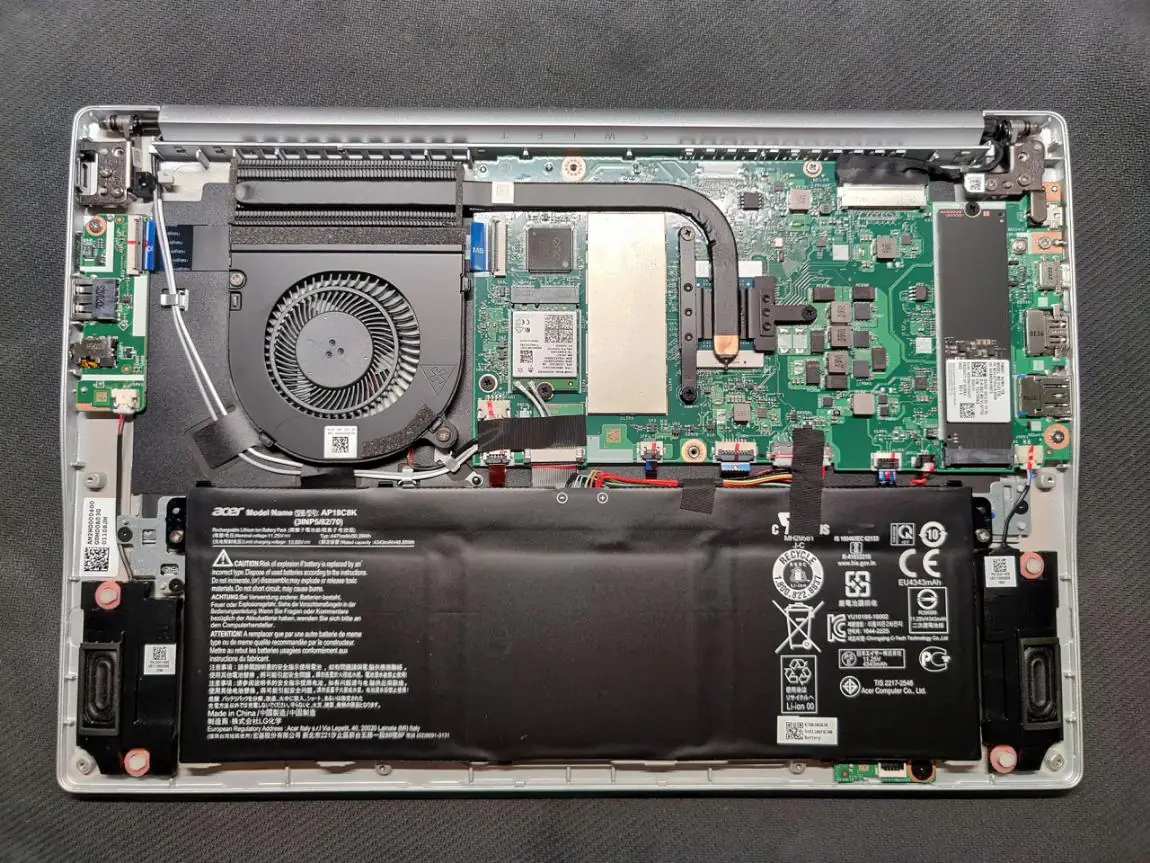
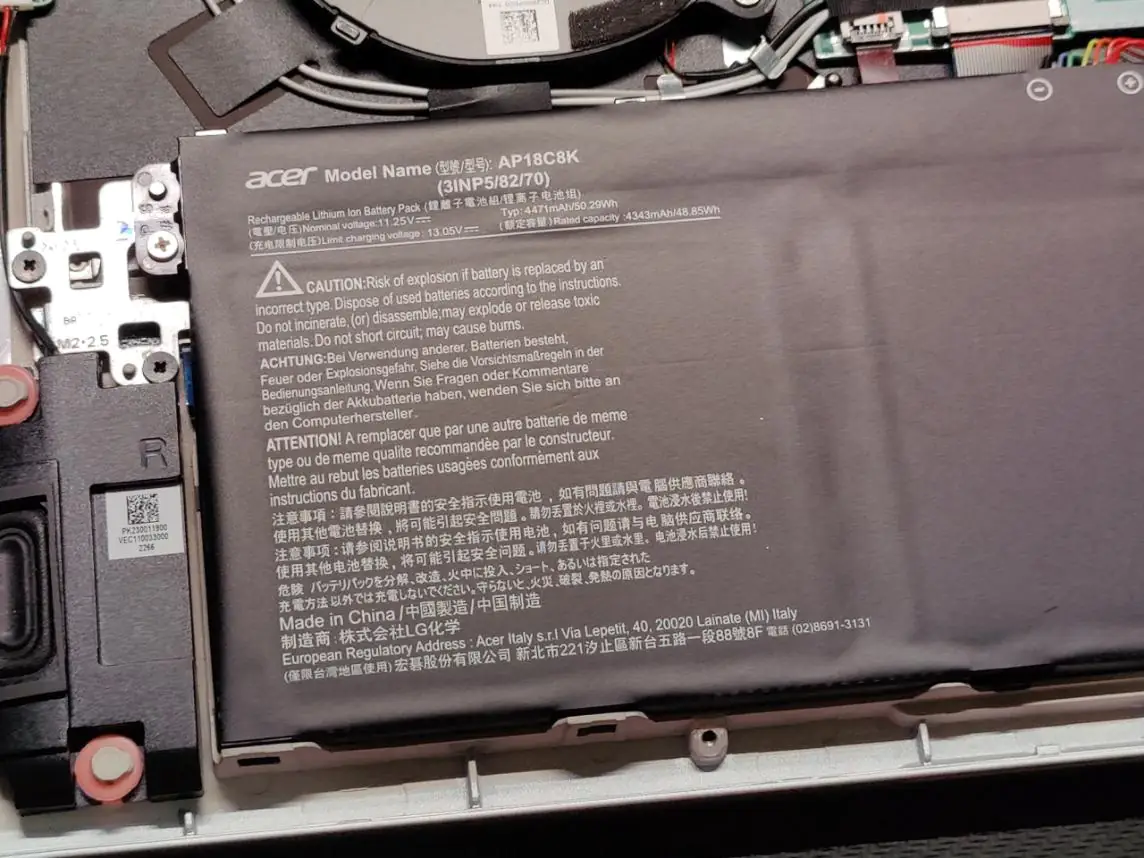
Its battery capacity is 48 Wh, which is considered an entry-level capacity for ultrabooks. However, due to the laptop’s conservative performance settings, its battery life is impressive, easily reaching more than 10 hours.
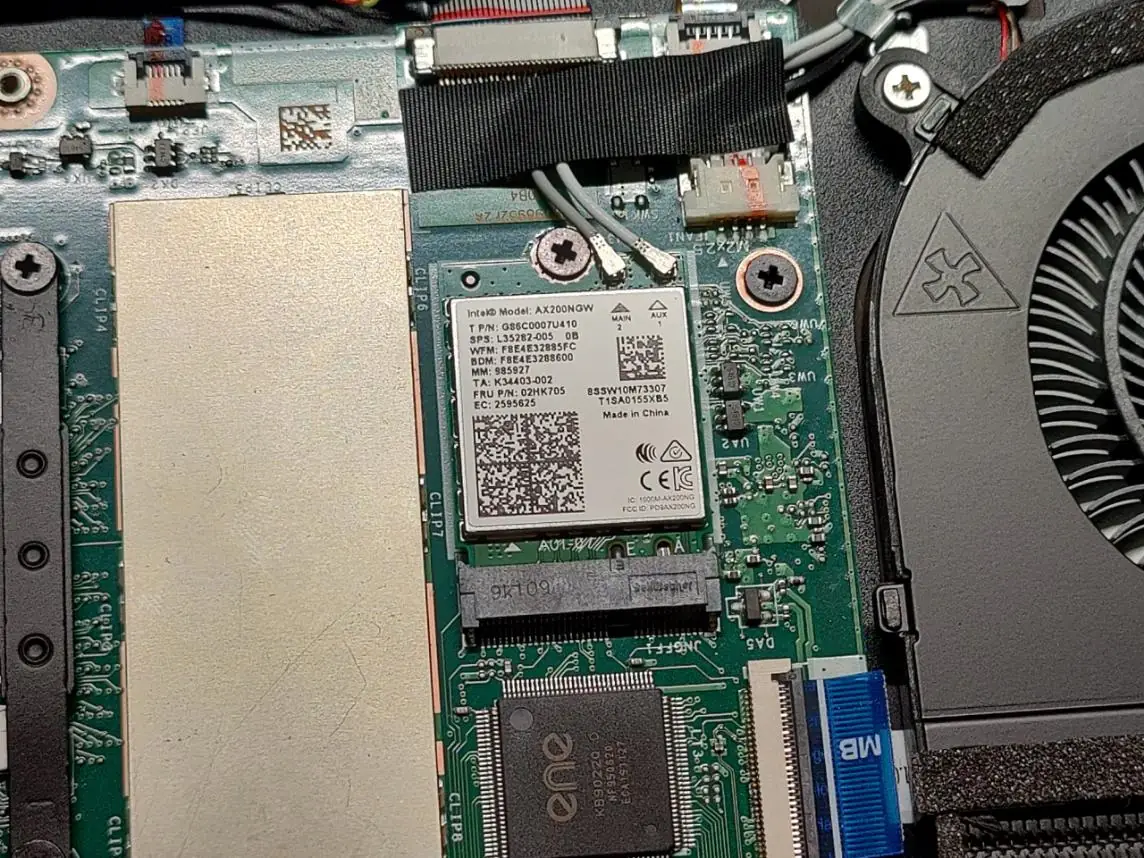
It comes with an Intel AX200NGW wireless card. It supports Wi-Fi 6 networks and can achieve connection speeds of up to 2.5 Gbps on the 5 GHz band. Below the white sticker is the memory module, which is soldered directly to the motherboard with no additional memory slots, so the laptop’s memory is not upgradable.
In the upper left corner of this picture is the power-off button previously seen on the bottom cover.
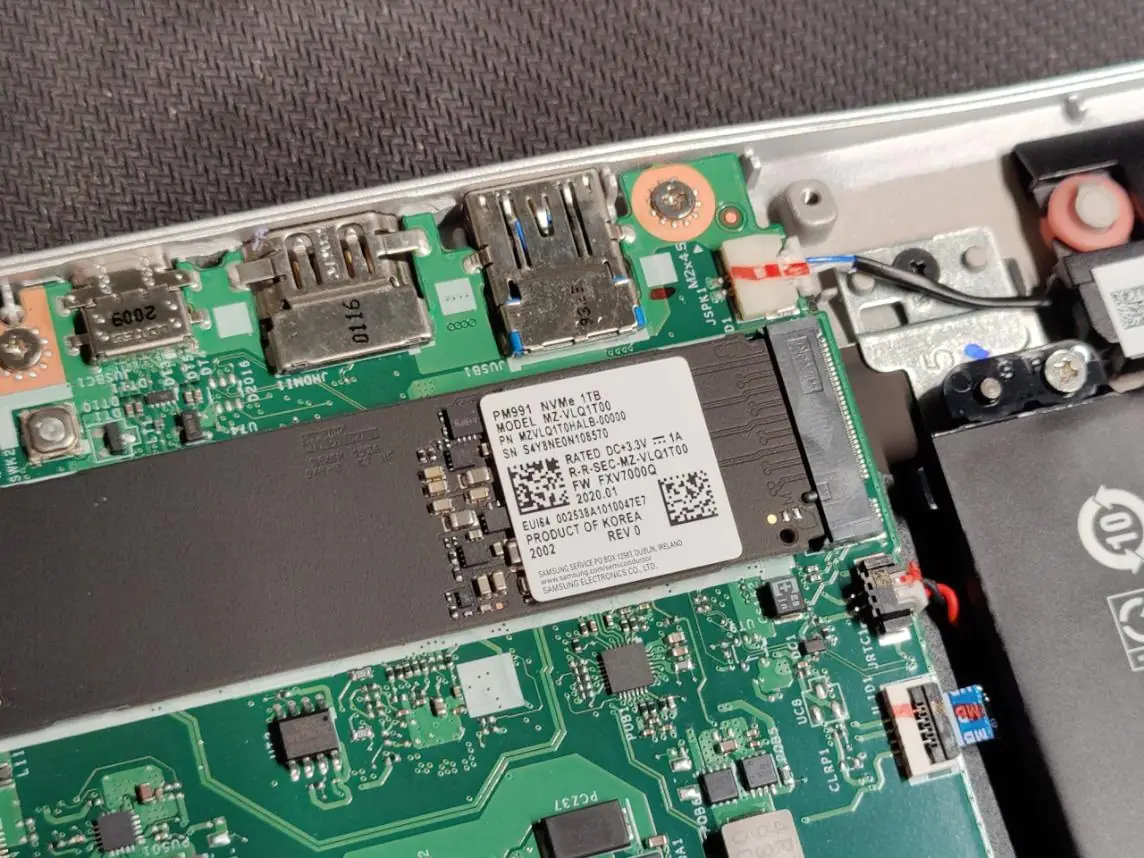
It has a Samsung PM991 1TB M.2 SSD that supports the NVMe protocol. In the AS SSD Benchmark, the continuous read speed is 1924 MB/s, the continuous write speed is 1528 MB/s, and the random read and write speeds are 24.72. MB/s, 118.78 MB/s.
In CrystalDiskMark, the measured continuous read and write speeds were 2312 MB/s and 1551 MB/s, respectively, and the random read and write speeds were 29.84 MB/s and 100.4 MB/s, respectively.
Hello! David,
Unfortunately, I spilled a mug of coffee on my Acer Swift laptop, and it stopped working. I disassembled it and dried out all the parts. On reassembly, I found myself with metal bracket No. 4, and I could not figure out where it went. The laptop is powering up and running. Can you help with this?
The tutorial is excellent.
Sorry, I don’t know what metal bracket No. 4 is, and this laptop is no longer in our hands.