
To remove the bottom cover, first remove all the screws. Then insert a plastic card or an old credit card between the bottom cover and the body, and slowly slide it to release the clips. Once all the clips are released, the bottom cover will separate from the body.
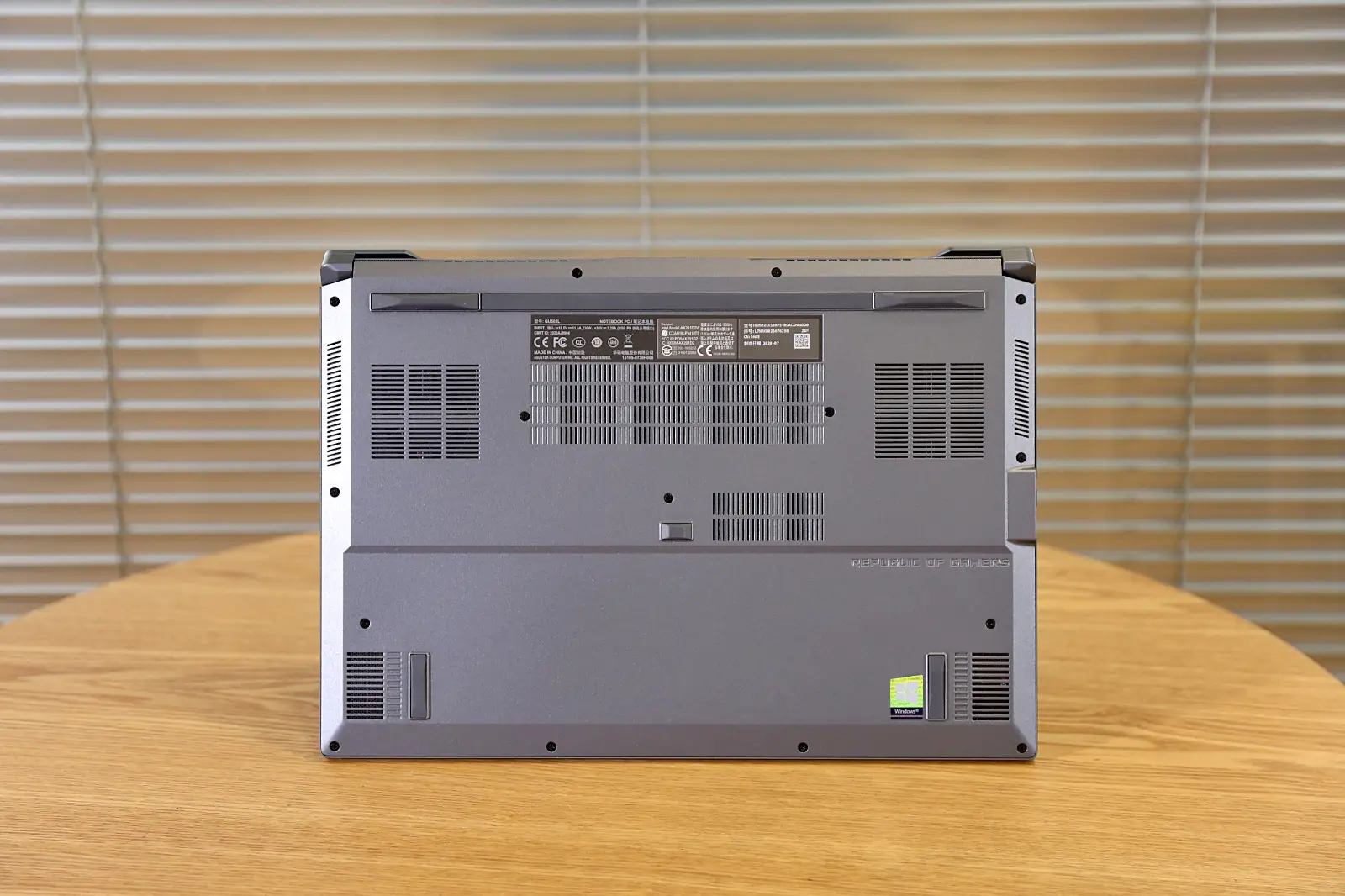
After removing the bottom cover, you can access most of the laptop’s internal components, including the battery, SSD, memory, cooling system, speakers, motherboard, and more. At this step, you can upgrade the memory and SSD, but be sure to disconnect the battery cable before touching any internal components.
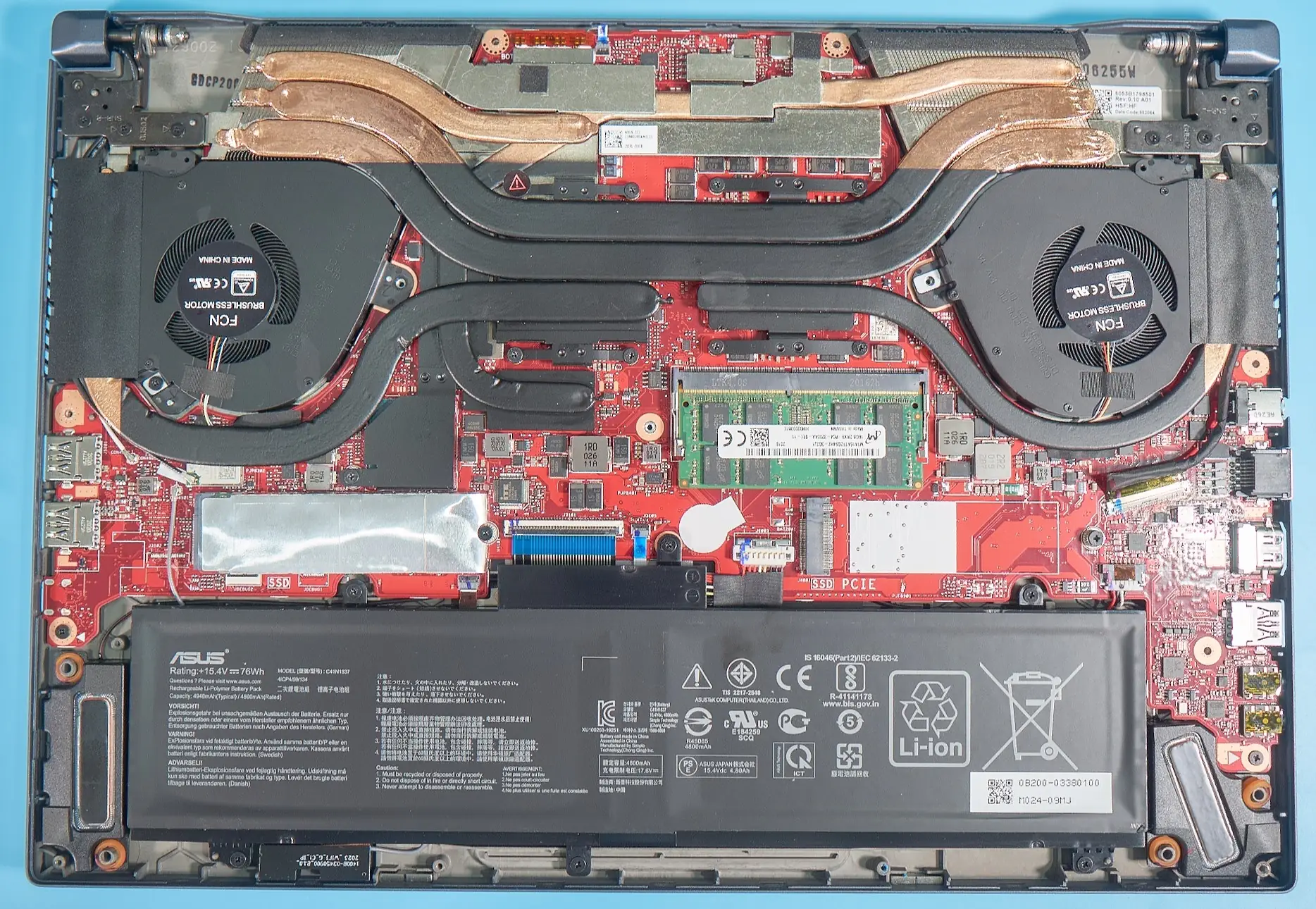
The Asus ROG Zephyrus M15 GU502 uses a cooling system called Glacier, which includes two 12V fans, six copper heat pipes, and four heat vents. It also has a heat plate covering the power chips and video memory.
The motherboard is soldered with 16GB of DDR4 3200MHz memory and has an empty SO-DIMM slot. I installed a 16GB DDR4 3200 MHz memory module to form a dual-channel configuration.
It comes with an Intel 660P 512GB SSD, which is Intel’s first SSD with QLC cells. There is also a spare M.2 slot at the bottom of the memory for users to install an additional M.2 SSD.
The Asus GU502 has a 76Wh battery. According to ASUS, it can support 8 hours of local video playback or 6.5 hours of web browsing.
Hi, I need a motherboard for this machine. My machine won’t turn on at all. I sent it to a repairer, but they said the motherboard was faulty.
Hi, I want to remove the BIOS battery, but I can’t find it in this model. Can you help me?
Why do you need to remove the CMOS battery? Most laptops nowadays don’t have a CMOS battery anymore; most of them have a 3.3V output from the laptop battery to supply the CMOS circuit, so there is no need to have a separate CMOS battery.
Hello,
I had a BIOS update on this laptop, and my computer never booted again. I am assuming it got corrupted somehow. I am trying to find a way to flash the BIOS, but what I have tried has not worked. I have changed my RAM and disconnected the battery by holding the power button for 40 seconds, but that hasn’t worked. Please help me save my laptop, as it is 2 months out of warranty, and they will not help me.
Please go to the ASUS website to download the factory BIOS for this laptop and then restore it to the factory BIOS.
After disconnecting the battery, I replaced the RAM module with a 32G RAM module. However, after assembling the system again, it won’t power back on.
I put back the original RAM, but it won’t power back on at all. Completely dead.
Any advice?