
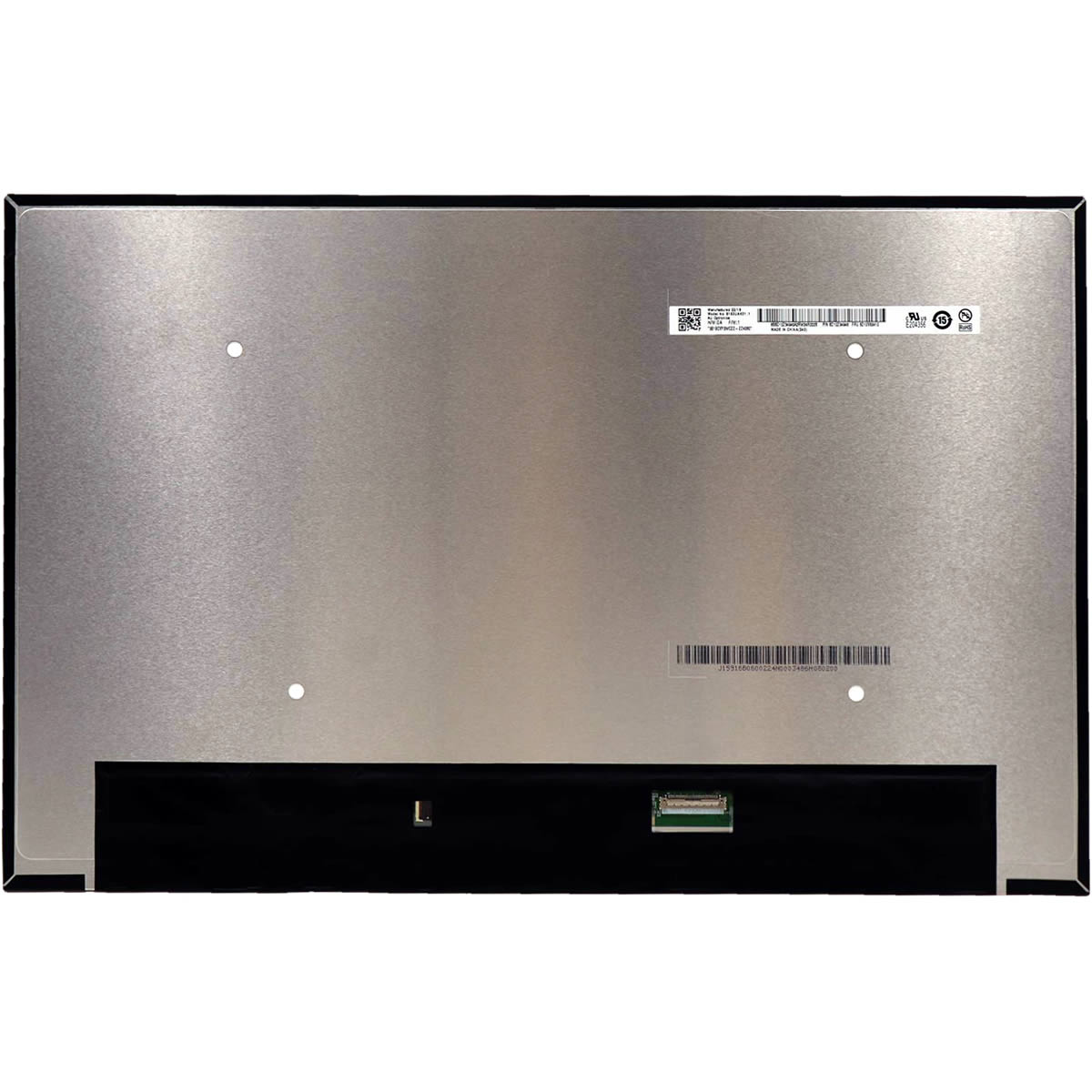
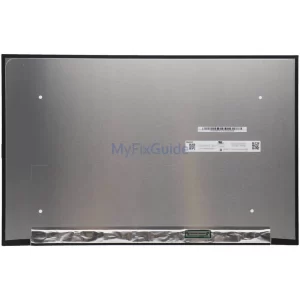
This is a new screen for MSI Creator M16 laptop. The laptop has two screen specifications: FHD+ (1920×1200), 144Hz; QHD+ (2560×1600), 60Hz. Please select your screen specs from the drop-down menu.
Features:
1. It is a 100% new screen. It has the same specifications as your original screen.
2. Each screen is rigorously tested to ensure it works fine and has no dead pixels.
3. Each screen will be given two easy-to-pull glues.
Specifications:
16″ 1920×1200 IPS 144Hz 45% NTSC Anti-Glare
16″ 2560×1600 IPS 60Hz 100% DCI-P3 Anti-Glare
Connector: 40 pins
Surface Type: Matte, Anti-Glare
Condition: New
Dead Pixel Policy: No Dead Pixel
Warranty: One (1) Year
Compatible Laptops:
16″ 2560×1600 IPS 60Hz 100% DCI-P3 Anti-Glare, fit below models:
Creator M16 A12UC (009NL, 010BE, 033FR, 090XES, 215ES, 226TR, 237AU, 410CA, 440CA, 477UK)
Creator M16 A12UD (007NL, 008BE, 019AU, 053FR, 214XES, 231ES, 232ES, 233PT, 266US, 269, 280FR, 283, 290XIT, 298IT, 421DC
Creator M16 A12UEV-468
and more models
16″ 1920×1200 IPS 144Hz 45% NTSC Anti-Glare, fit below models:
Creator M16 B12UDX-483NL
Creator M16 B12VE-1003BE
16″ 2560×1600 IPS 60Hz 100% DCI-P3 Anti-Glare, fit below models:
Creator M16 B12UDX (489BE, 688XES, 809XES)
Creator M16 B12VE (685XES, 1470PL, 464FR)
16″ 1920×1200 IPS 144Hz 45% NTSC Anti-Glare, fit below models:
Creator M16 B13UDX-834TH
Creator M16 B13VE (1617XES, 482NL, 488BE, 692, 1065IT, 1076AU, 1661US, 623AU, 631AU)
Creator M16 B13VF-608CA
16″ 2560×1600 IPS 60Hz 100% DCI-P3 Anti-Glare, fit below models:
Creator M16 B13UDX (686ES, 687XES)
Creator M16 B13VE (1235FR, 1250US, 1251US, 1411ID, 465FR, 485NZ, 680XES, 681ES, 682XES, 683ES, 692DE)
Creator M16 B13VF (1011US, 1225XKR, 1241US, 453US)
Replacement Tips:
1. Make sure the specifications, description, and image match the original screen on your laptop.
2. To replace your screen, you have to remove the battery or disconnect the battery cable from the motherboard. This is to protect your laptop from being damaged by static electricity.
3. The LCD bezel is fixed on the LCD back cover with easy-stretch adhesive. Slowly pull out the adhesive, and you can easily remove the screen.
4. Place the LCD screen on the keyboard, disconnect the display cable from the LCD screen to remove the old LCD screen, and then you can install the new screen on your laptop.
5. You can first connect the LCD cable to your screen, then start the laptop to check that your LCD screen is working properly, then fix the screen on the back cover, and install the LCD bezel.
Reviews
There are no reviews yet