
The Lenovo ThinkPad T490 comes with an Intel Whiskey Lake processor. Users can choose between the Intel UHD 620 integrated graphics and the NVIDIA GeForce MX250 discrete graphics based on their needs. It supports up to 32GB of memory (16GB expandable and 16GB onboard) and a 1TB PCIe NVMe SSD.
The ThinkPad T490 features a ThinkShutter, which can physically block the camera. The Infrared camera and fingerprint recognition module are also optional configurations.
This laptop supports up to a 14-inch WQHD IPS screen with 100% Adobe RGB wide color gamut, allowing content to be clearly displayed even in bright environments. The thickness of the screen bezels on both sides is only 8.6 6mm.
It weighs 1.49 kg and measures 18.9 millimeters in thickness. The device supports fast charging technology, allowing the battery to reach 80% capacity in one hour, and it offers up to 13.6 hours of battery life.
I have seen many users want to upgrade the memory and SSD of their T490, so I am sharing my experience of upgrading the memory and SSD with everyone.
First, loosen the screws securing the bottom cover and insert a thin plastic tool under it. The bottom cover is connected to the palm rest through multiple clips, so you need to move the plastic tool along the sides to release all the clips.
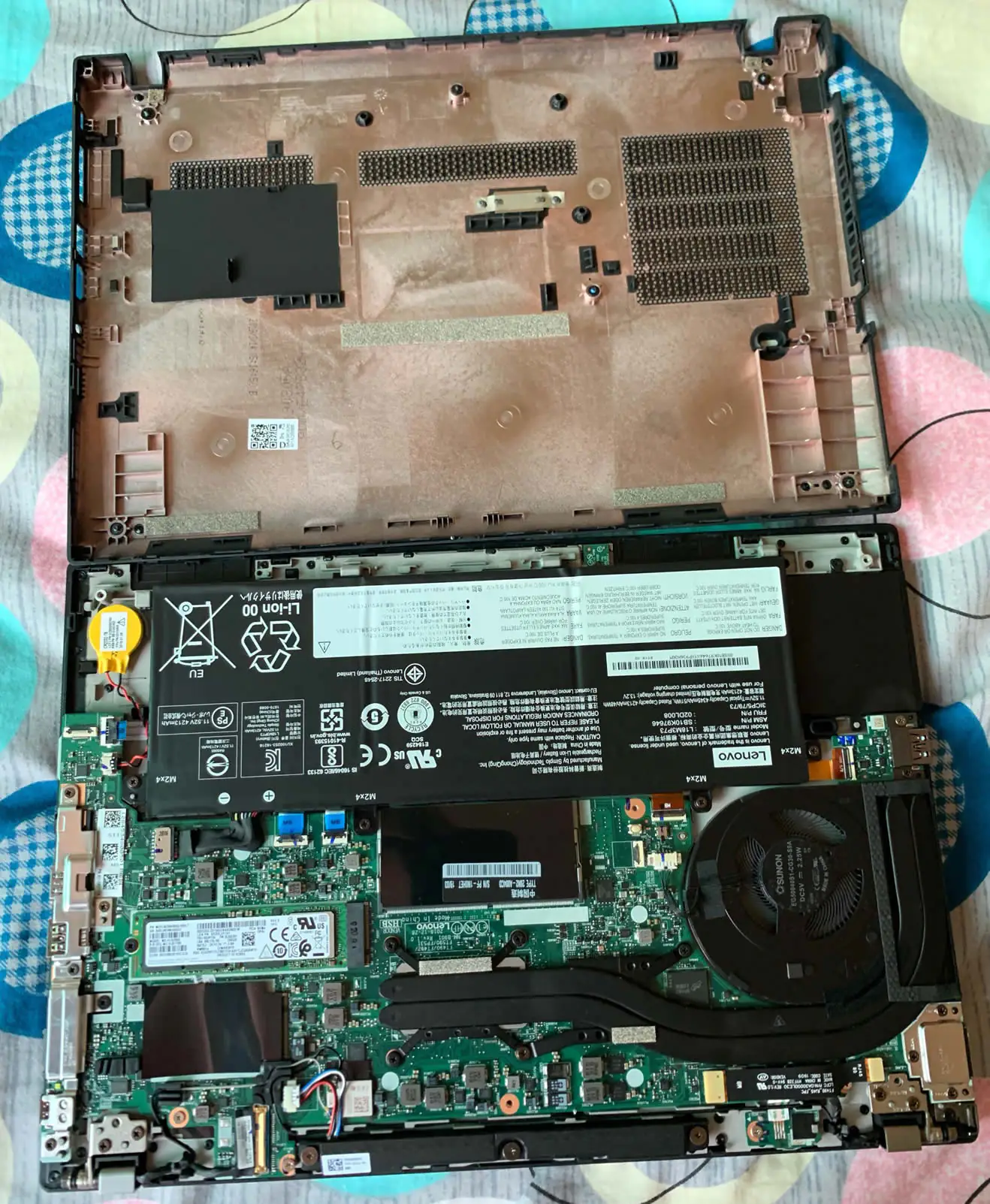
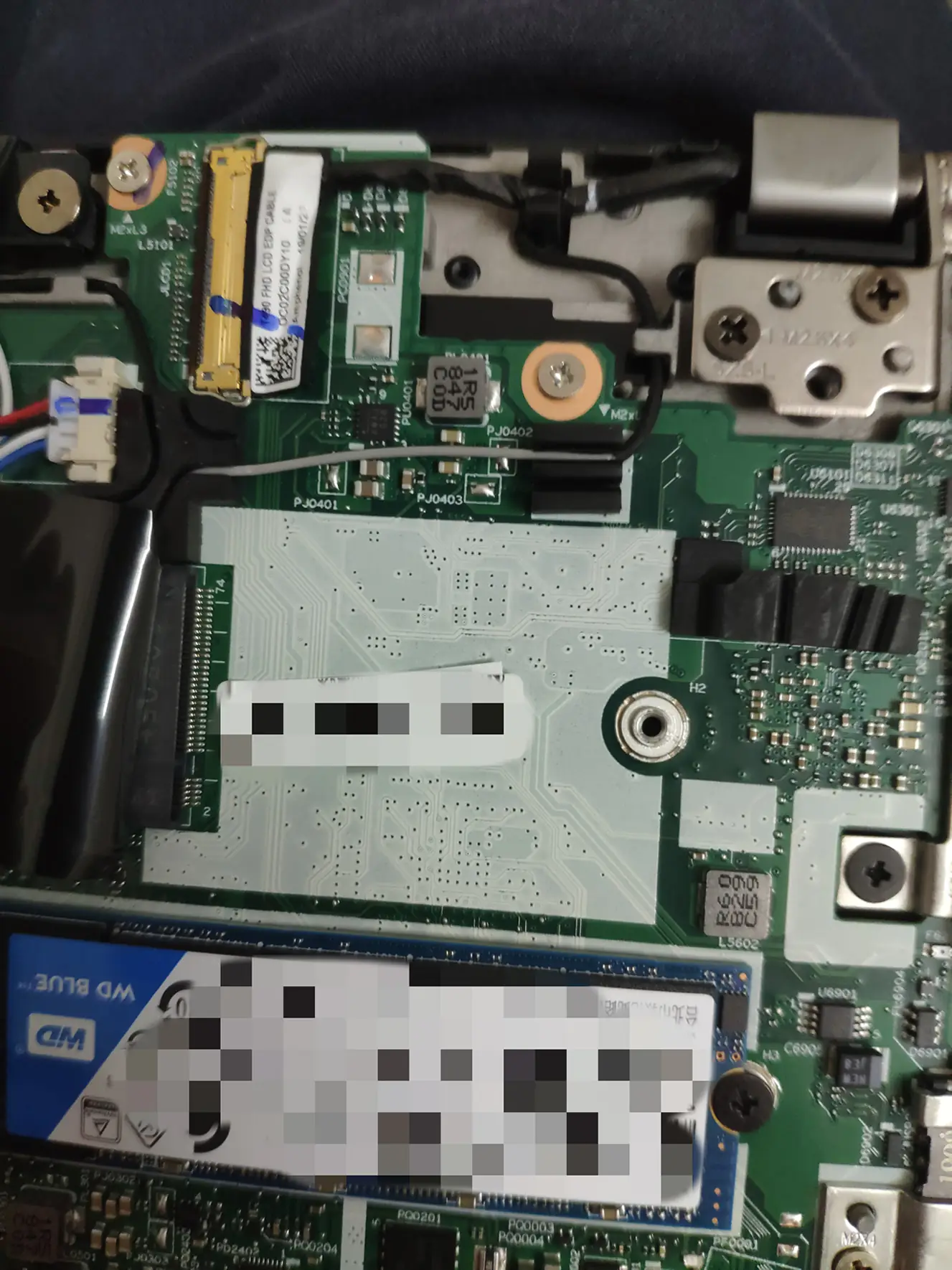
After removing the bottom cover, you can access the battery, SSD, CMOS battery, memory slot, cooling fan, heatsink, and motherboard.
The ThinkPad T490 comes with an 11.52V, 4345mAh, 50Wh Li-ion battery. The part numbers are L18M3P73 and 02DL008. The most significant difference between the ThinkPad T490 and the ThinkPad T480 is that the T490 cancels the external battery and retains the built-in battery.
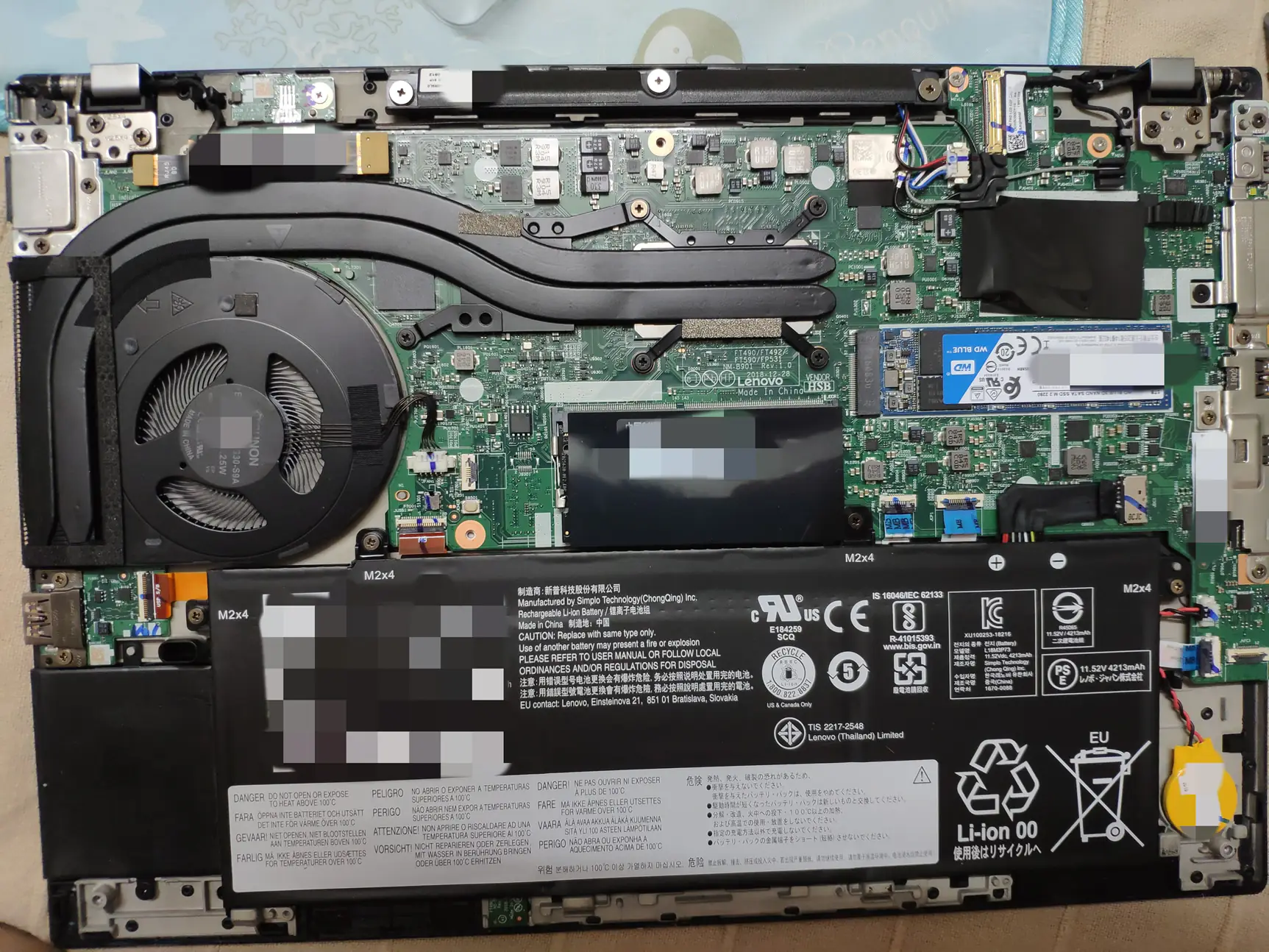
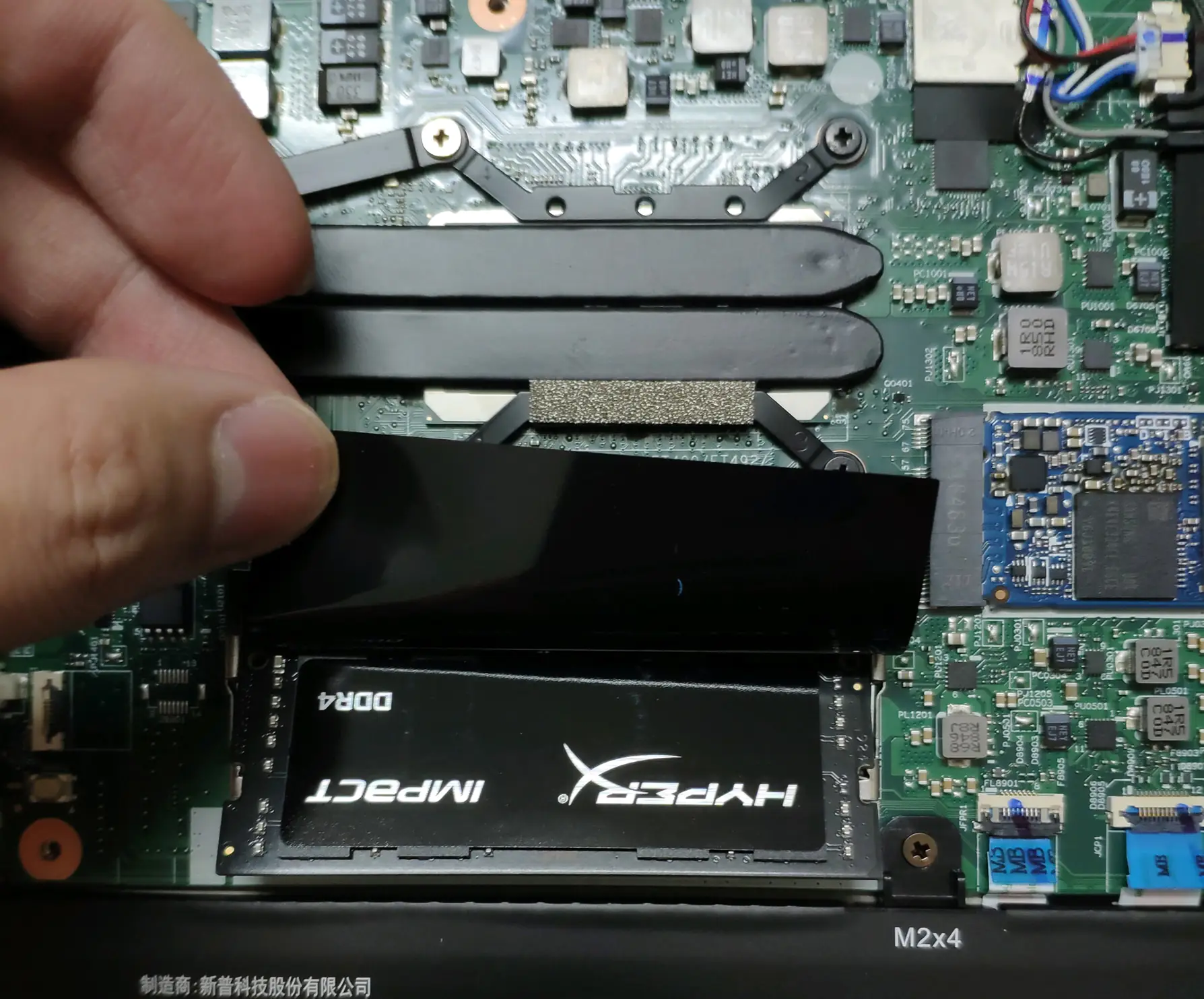
The Lenovo ThinkPad T490 has 8GB of onboard memory and a free RAM slot. This slot supports up to 16GB DDR4 2400 MHz memory.
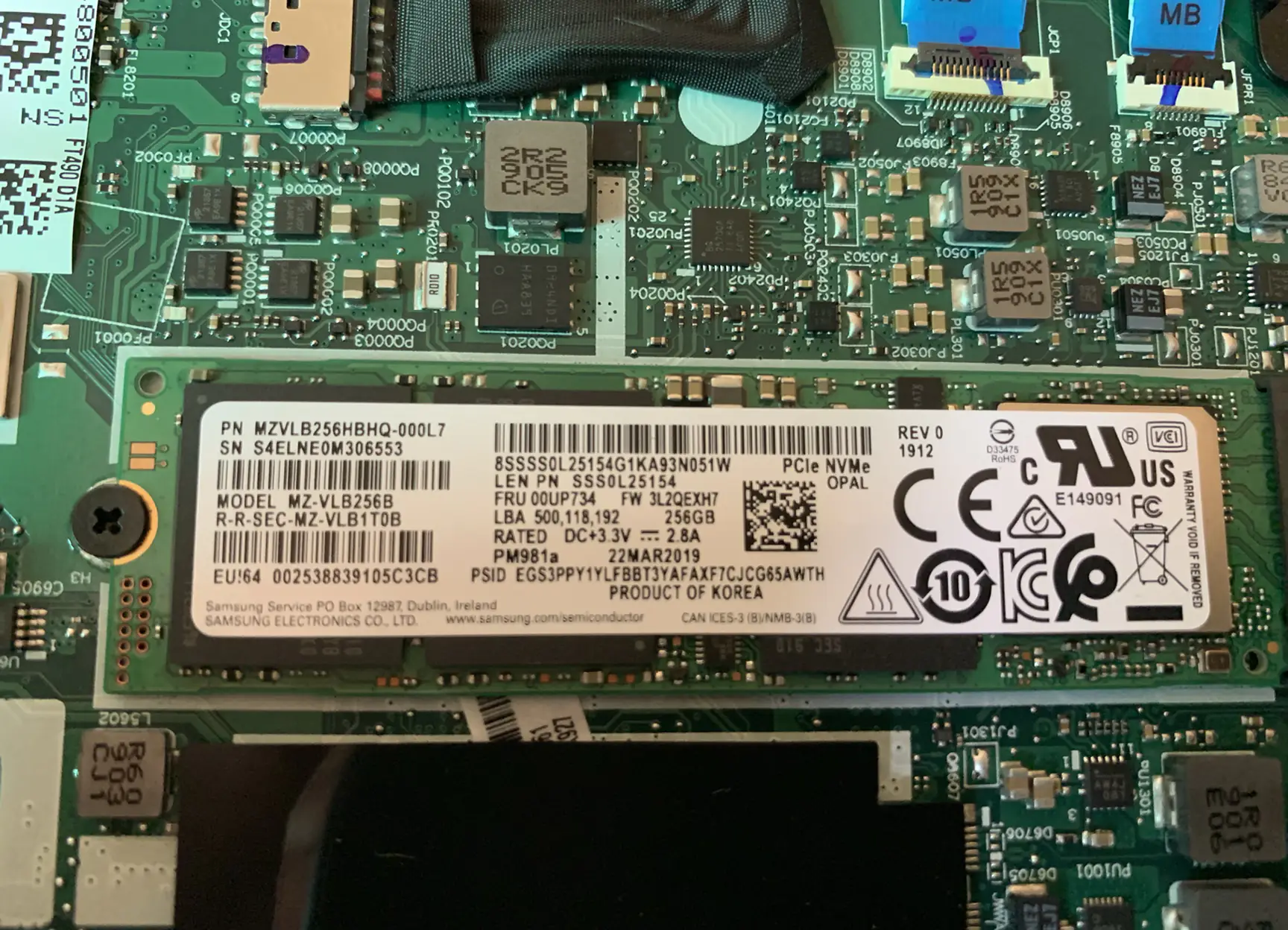
The laptop has a Samsung 256GB PM981A PCIe NVMe M.2 SSD. Of course, you can replace it with a larger-capacity SSD. It supports up to 1TB PCIe NVMe M.2 SSD.
This is the WWAN 2242 M.2 slot. I noticed that someone installed a PCIe SSD in this slot, but the system does not recognize it. This is very regrettable.
Of course, this can be solved by updating the BIOS. I hope Lenovo will update the BIOS to make the ThinkPad T490 support a 2242 SSD.
Is it possible to disable the MX250 when it’s not needed? Just to have better battery life.
You can go to the BIOS to disable the graphics card or disable it in the device manager.
I believe the max RAM is wrong. If the laptop comes with 8GB soldered onboard, it supports a maximum of 40GB by adding a 32GB module. If it comes with 16GB onboard, it supports 48GB by adding a 32GB module.
I’m confused (and disappointed) about this too. When I customize it on the Lenovo website, the permanently soldered module is 8GB, but it maxes out to 48GB, so that only slot has to accept a 40GB module. What an oddball design.
There is a 16GB option for the onboard RAM.
I can double that: I’ve replaced the 8GB module with a 32Gb module, and it works without problems in dual-channel mode (probably up to 16GB, I would guess).
Can I add the MX250 later? In other words, is it possible for a user to add the GPU as a DIY upgrade?
+1, would be cool to know!
Yes, mate. I saw some model machines that do not have the MX250.
The WWAN 2242 M.2 slot only supports SATA protocol SSD. Installing an NVME SSD in there will not work, even if the SSD supports both protocols. It’s SATA only.
This laptop has only one RAM slot?
If I understand correctly, if I buy a laptop with 16GB of RAM, this memory is on the motherboard, and one slot is free for additional RAM.
Thanks for the answer 🙂